Tutorial

This tutorial will show you how to download and install the skins provided on Anime Winamp Skins.
Tutorial assumes: You use Windows Vista and have Google Chrome as your web browser.

Step 1:
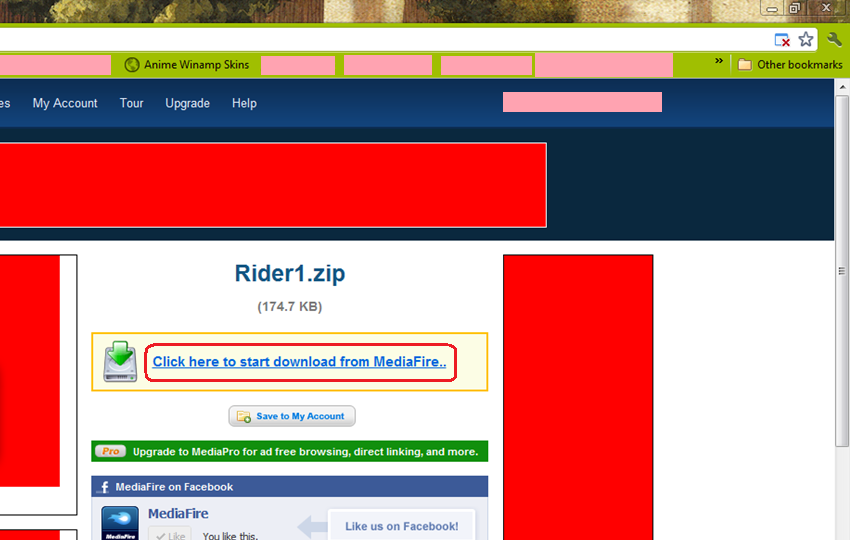
Choose the skin that you want to download. The skin will normally open in the same window but if you want it in a separate window, just right click.

 Step 2:
Click on there it says "Click here to start download from MediaFire . . ." to begin your download. You can download it straight to your Winamp Skins folder or put it somewhere else first. Skip to Step 5 if you downloaded it to your Skins folder.

 Step 3:
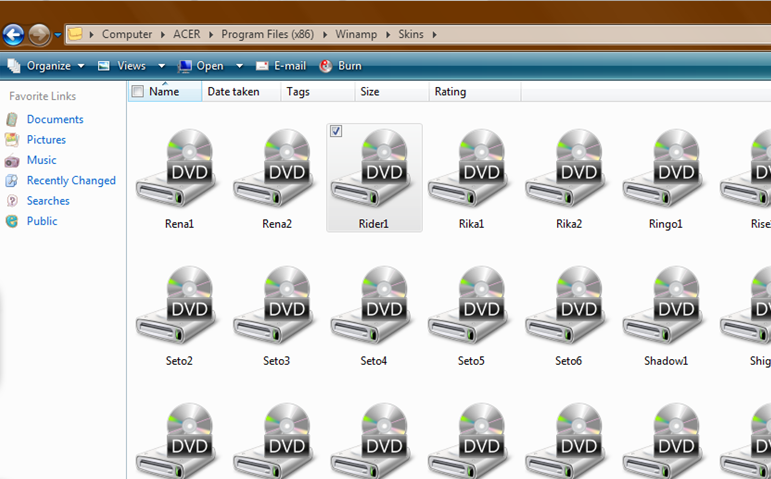
Once your download has finished, go to the place it's downloaded to and click 'Cut'.
NOTE: Please ignore the disk drive icon that's appeared. My zip folder icon changed to a DVD drive one and I never bothered to fix it.

 Step 4:
Go to Computer\ACER\Programme Files (x86)\Winamp\Skins. (This address may vary depending on what kind of computer you're using but the Winamp programme folder should be found somewhere in your "Programme Files" folder). Once there, paste the skin you downloaded (or just move it) so that it appears in the folder. You'll be asked if you want to do this but just click "Yes" to override this.

 Step 5:
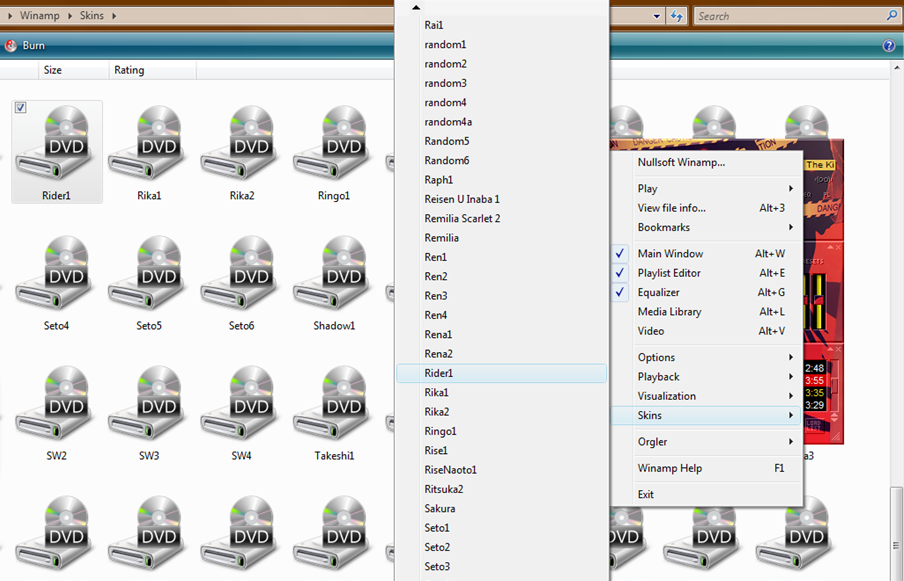
Open your Winamp Player and the go to the Winamp menu. Scroll down to "Skins" and then click on your newly-added skin.

 Step 6:
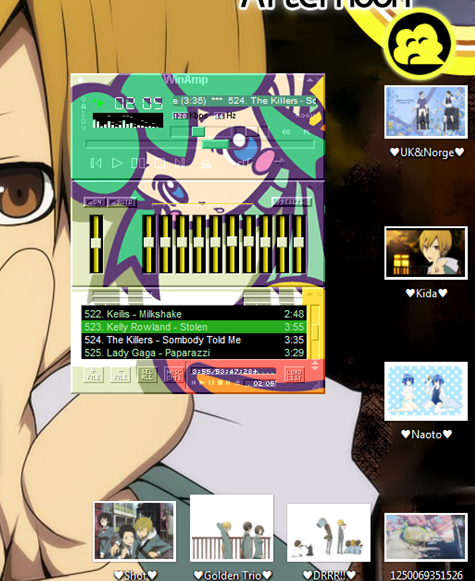
Ta-da! You have now successfully downloaded and installed your Winamp Skin. Please enjoy!


Make a Free Website with Yola.